Category: General

  • Tecno Camon 15 Price in Ghana, Specs and Features

    Tecno Camon 15 is another release in Tecno’s Camon series. Tecno Camon 15 came with four models CD6 (Camon 15 Air), CD7 (Camon 15), CC8 (Camon 15 Pro) and CD8j (Camon 15 Premier) to succeed last year’s Camon 12. This review is mainly about Tecno Camon 15 (CD7). Tecno Camon 15 price in Ghana, Specifications and features will be discussed in this post.

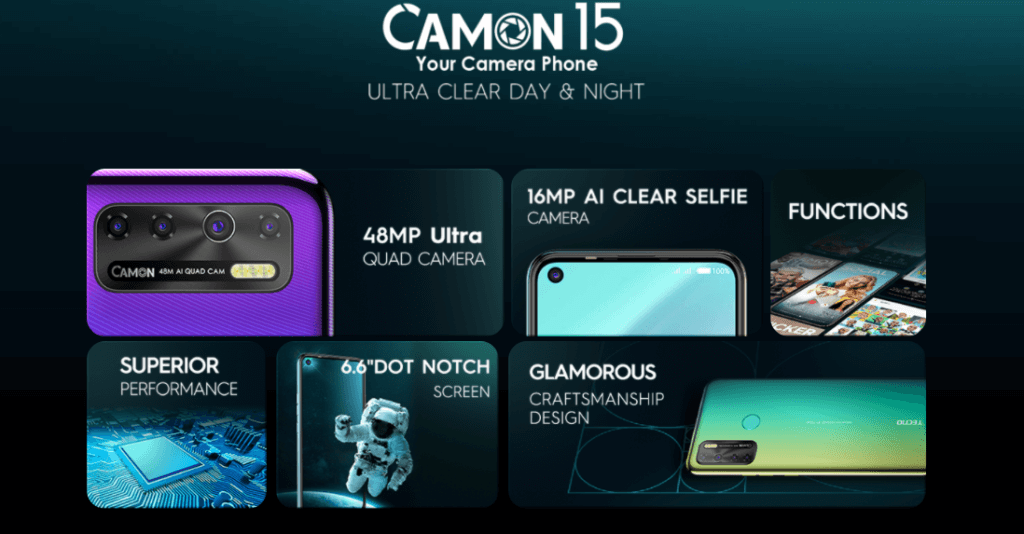
    Tecno Camon 15 comes with quad-camera at the back and 16 megapixels front camera. It has Android 10 with HIOS 6 skin installed. 64 GB storage capacity and 4 GB memory capacity.

    Table of Contents

    Features of Tecno Camon 15

    Storage

    The Tecno Camon 15 comes with an internal storage of 64GB and microSD card slot. This means you can insert a memory card (microSD card) if you need more space. I think 64GB is enough for our personal activities because it can hold a good number of pictures and other files.

    Also, it has 4GB of RAM, which makes it’s performance great. This enables you to pin apps, open multiple apps and runs more app in the background.

    Operating System

    Tecno Camon 15 have Android 10 OS installed with HIOS 6.0 Skin which gives it extra features such as the dark theme for dark theme lovers, WiFi share for those who want to share their WiFi networks, WhatsApp status rescuer to save WhatsApp status of your contacts, off-screen gaming for game lovers to save their battery and data, beautiful pop-up messages and many more.

    Design and Functionality

    The Tecno’s Camon 15 is a phablet type android device with a slate form factor. It is strong and not as fragile as it appears. Has an LCD display type and size  6.55 inches.

    It has a glass front, plastic back and a plastic frame. We currently have three different colours in the market, that is; shoal gold, Fascinating purple and Jade.

    At the front of the Camon 15, we have the hole punch camera with dual front flash hidden in the dot-in display. Quad Camera with Quad flash and Fingerprint at the back.  3.5mm Headphone Jack, Microphone, MicroUSB port and the speaker at the bottom.

    Camera

    Tecno Camon 15 has quad-camera at the back, which means it has four cameras at the back. The first one 2MP (AI Bokeh effects), second being the main Camera with 48MP (Super HDR and AI Scene detection), third is Secondary camera with 2MP and the last camera, TRAIVOS enables you to take clear pictures at night. The front camera is also 16MP.
    The camera comes with some cool features like AI body shaping, super HDR, AI scene detector, bokeh effects, stickers etc.

    Battery

    The battery is non-removable with 5000mAh. Which can last for the whole day.

    Price

    Tecno Camon 15 price in Ghana is GHS 969, this is the price from TECNO Ghana. This price may increase or decrease from shop to shop.

    Things in the Box

    • The Phone
    • Transparent Silicon case
    • Glass Screen Protector
    • Charging Adapter
    • micro USB cable

    Cons

    • Doesn’t include fast Charging
    • Do not use Type-C USB port

    Specifications of Tecno Camon 15 – CD 7 ( For Techies 👨‍💻)

    SpecificationValue
    Launch Date (Ghana)February 25, 2020
    Network2G/3G/4G
    BuildPlastic back, Plastic frame, Glass front
    Weight196g
    Body Dimension164mm X 76.3mm X 8.7mm
    Display TypeIPS LCD
    Display Size6.55 inches (16.41cm)
    Display Resolution720 X 1600 pixels, 20:9 ratio ( ~266ppi)
    Operating systemAndroid 10, HIOS 6.0
    ChipsetMediatek MT6762 Helio P22
    CPUOcta-core 2.0 GHz Cortex-A53
    GPUPowerVR GE8320
    Card SlotMicroSDXC (Dedicated slot) (It supports external memory card)
    Storage (ROM)64GB
    Memory (RAM)4GB
    Back Camera TypeQuad (2MP, 48MP, 2MP, QVGA)
    Back Camera FeaturesQuad-LED flash, HDR
    Back Camera Video1080@30fps
    Front Camera Type16 MP, f/2.0
    Front Camera FeaturesDual LED flash, HDR
    Front Camera Video1080p@30fps
    LoudspeakerYes
    3.5mm Headphone JackYes
    WLANWiFi 802.11 b/g/n, hotspot
    Bluetooth5.0, A2DP, LE
    GPSYes
    NFCNo
    RadioFM Radio
    USBMicro USB 2.0, USB On The Go (OTG)
    FingerprintYes (Rear-mounted)
    BatteryLi Po 5000mAh, Non-removable
    ColoursShoal Gold, Fascinating Purple, Jade
    PriceGHS 969.00

    Where to Buy

    Disclaimer: The online shop listed below are some popular online stores in Ghana. Their delivery and other services may delay so do purchase only if you are ok with these online shopping platforms. We do not earn any commission from any of the shops listed below.

    Store NamePriceBuy Link
    Tecno GhanaGHC 815 – GHc 1099Buy Now
    Franko TradingGHC 890Buy Now
    JumiaGHC 969Buy Now

    Credits: Wikipediagsmarena

    Watch the video below if you want to know more about this device.

    https://www.youtube.com/watch?v=xMxAbdSGEOw

    Thank you for reading, do not forget to share this article with friends and family, also if you don’t understand anything or have some questions or corrections, please do well to leave it in the comment box we will answer them as soon as possible.

  • How to Use WhatsApp on PC Without Smartphone

    Unlike Facebook, Telegram and others, WhatsApp is designed mainly for Smartphones. Although there are desktop and web version of the app, you can not use it alone unless you have is installed and configured on your Smartphone first.

    What happens when your phone got spoiled or do not have access to a smartphone? How are you going to chat with your friends and family, even your clients who are on WhatsApp?

    Do not worry, this article will give you three ways you can use WhatsApp on your Computer or Laptop without any Smartphone.

    All of the methods explained below works on both MAC OS and Windows OS.

    Ways to Install WhatsApp on PC.

    There are many ways you can install WhatsApp on your PC, some include; using online emulator, installing the Android SDK as Virtual Machine, using WhatsApp Web or their official desktop App, using an emulator.

    In this guide, I find emulators to be the most effective way to use WhatsApp with any Smartphone or Scanning any QR code. The emulators that I suggest are Bluestacks, Nox Player and Genymotion. Make sure you follow our steps.

    This isn’t only for WhatsApp but you can install most Android apps and games if you enjoy desktop games experience.

    Let’s get started.

    How to use WhatsApp using BlueStack

    Before we start, Bluestacks’ recommended requirements for Windows include; Windows 7 or above, 8GB or higher RAM, and up to date Graphic drivers. 4GB of RAM will also work but won’t enjoy the maximum experience.

    1. Download Bluestacks by clicking here or you can enter https://bluestacks.com from your computer and click on the Download button to start downloading.
    2. Open the downloaded file and accept all permissions.
    3. When the first window of Bluestacks open, click on install. It will download a file more than 500MB, so make sure you have enough data to download.
    4. Wait for some time for your software to fully install.
    5. Click on the Bluestacks’ icon to open the application for the first time. Wait for it to finish loading.
    6. It will ask you to sign in to your Gmail account. In my own preference, I will sign in to get access to my contacts and other documents easily. But you can ignore it.
    7. Open Google play store and Install WhatsApp.
    8. After installing your WhatsApp, Click on the Whatsapp icon.
    9. Select your country and enter your phone number.
    10. You will receive a six digits verification code from WhatsApp or Facebook on your phone number
    11. Enter the code into WhatsApp.
    12. The next page will ask you to install your back up from Google Drive. It is up to you, but I will choose not now.
    13. Now you have your WhatsApp on your laptop

    How to use WhatsApp using Nox Player

    1. Visit bignox.com and click on download to download the .exe file.
    2. Open the downloaded file
    3. Accept their terms and conditions and click on Install. This stage will take some time and make sure you have enough data.
    4. After the installation, open your Nox player by clicking on the icon. It will take some seconds to boot your emulator.
    5. Login to your google account
    6. Go to play store and download WhatsApp.
    7. After installing your WhatsApp, Click on the Whatsapp icon.
    8. Select your country and enter your phone number.
    9. You will receive a six digits verification code from WhatsApp or Facebook on your phone number
    10. Enter the code into WhatsApp.
    11. The next page will ask you to install your back up from Google Drive. It is up to you, but I will choose not now.
    12. Now you have your WhatsApp on your laptop

    How to use WhatsApp using Genymotion

    This method is very good for those with low spec machines. And it runs smoothly for all devices.

    1. Go to https://www.genymotion.com/download/.
    2. It will give you two download options. If you have VirtualBox installed on your PC then choose download without VirtualBox (option 2) else choose the first Download option.
    3. Install the downloaded file on your PC. This will install both the Genymotion app and VirtualBox
    4. Open https://genymotion.com and create a free account (personal account).
    5. Open the Genymotion app on your PC
    6. Sign in using the account you created in step 4.
    7. Click on the Plus sign on your top right corner.
    8. Select the type of device you like.
    9. Click on Install to install your virtual Android phone.
    10. After it has completely installed, click on the three dots menu and click on start.
    11. With this, it is difficult to sign in to your google account, so download the WhatsApp APK file from https://www.whatsapp.com/android/ and drag it into the phone screen.
    12. After installing your WhatsApp, Click on the Whatsapp icon.
    13. Select your country and enter your phone number.
    14. You will receive a six digits verification code from WhatsApp or Facebook on your phone number
    15. Enter the code into WhatsApp.
    16. The next page will ask you to install your back up from Google Drive. It is up to you, but I will choose not now.
    17. Now you have your WhatsApp on your laptop

    Some Questions Answered

    How can I use WhatsApp Web without phone?

    In order to use WhatsApp Web, you need a smartphone that has WhatsApp installed and also online with the same number. If your phone goes offline, then automatically your WhatsApp web will also be disconnected.

    How can I use WhatsApp on PC without QR code?

    To use WhatsApp with QR code, you need to use an emulator by following any of the methods above.

    Thank you so much, hope you liked our article. Do not forget to share and comment.

  • How to Check MTN Number in Ghana – 2 Easy Methods

    There have been so many requests on the question “how to check MTN number in Ghana?” from our dear friends of techbossu.com/. I know the pain you get through when you buy a new SIM card before you can remember your number. Since this has been a popular request from my dear friends, I’ll take my time to explain some ways you can check your MTN GH all the time and anywhere.

    If you want to know how to check MTN number in Ghana, dial *156# and call, select option 1 (Check My Number) and your number will be displayed.

    There are many ways one can check his number but my ideal way is by using their USSD method. Below are some ways you can check your MTN GH number.

    How to Check MTN GH Number Using USSD

    Initially, by typing *156#, you see your number on your screen only if there is a network. But there have been some changes by adding some other menu or option you need to select from. Follow the steps below to learn how to check your MTN number using USSD

    Steps to Check MTN GH Number Using USSD

    • Dial *156# and call
    • It will give you about 5 options, select option 1 or reply with 1 which is 1. Check My Number
    • Voila! Your response or your next screen will be “Y’ello, your phone number is 233240000000“.
    • If you want your number without the country code, just replace the 233 with . In our case, our number is 0240000000.

    Below are the options in *156# and their functions

    1. Check My Number: This option enables you to check your MTN GH phone number
    2. Internet Settings: This enables you to get their internet setting on your phone and check whether your mobile device supports LTE.
    3. Usage Summary: If you want to check the summary of the amount of data, voice and SMS you have used, also all your recharges and promotions then this option will help you.
    4. 4G SIM Change: This will let you change your 3G SIM to 4G SIM.
    5. Promo Points: This point is accumulated when you make payments to MERCHANT IDs.

    How to Check MTN Number in Ghana Using MyMTN App

    Do you know you can also check your MTN number using MyMTN App? Follow the steps below.

    • Open MyMTN App (Register if you haven’t done it)
    • Click on the three horizontal bars on the app bar (located at your right-hand side).
    • Select Profile from the list of Menus that will appear.
    • Your Name, Your Number and SIM Activation date will be displayed.

    To download MyMTN App, iOS users should click here while Android users should also click here.

    Thank you so much for reading our post and hope it solved your problem. Please don’t forget to like, comment and share our post because more interesting posts are coming.

  • Essential Travel Accessories for Remote Workers

    Okay, so here’s the thing about remote work travel gear – most of it is complete garbage designed to separate you from your money. I know this because I’ve bought way too much of it over the past three years since we decided to enroll our kids in this world school program that has us moving every three months.

    You want to know what I’ve learned? It’s not about having the coolest gadgets. It’s about finding the few things that actually solve real problems without taking up half your suitcase or dying on you when you need them most.

    Cables: The Stuff That Makes Everything Else Work

    I’m starting with cables because they’re boring, everyone ignores them, and they’ll ruin your entire setup if you get them wrong. Trust me on this – I’ve been stuck in Mumbai airport with a dead laptop because I brought a cheap cable that decided to stop working.

    My daily driver is this Apple braided USB-C cable. Yeah, it costs way more than the sketchy ones on Amazon, but it hasn’t failed me once in 18 months of abuse. The braided design means it doesn’t turn into a pretzel in my bag, and it actually charges things quickly. When you’re 12 time zones away from civilization, reliability beats savings every time.

    Now, here’s where it gets interesting – I also carry this 90-degree USB-C cable from Condor Blue. Sounds weird, right? But that angled connector is a lifesaver when you’re trying to work in airplane seats or cramped café corners. Your SSD can sit flush against your laptop instead of sticking out like a broken bone waiting to get snapped off.

    For serious data transfer (like when I’m dumping 4K footage from my phone), I use this tiny flat cable from Rick’s. It’s stupid fast and takes up almost no space. The flat design means it doesn’t create bulk in your cable organizer, which matters more than you’d think.

    The last one is kind of controversial – this retractable cable from Basis in a plastic case. Yes, the case adds weight. Yes, it takes up more room. But you know what? It never tangles, I can find it instantly in my bag, and the retraction mechanism still works after being thrown around for months. Sometimes convenience wins over minimalism.

    Here’s my actual advice: Get one longer cable and one shorter one. That’s it. Don’t overthink it.

    Stands That Don’t Suck

    I spent way too long being stubborn about phone and laptop stands. “I don’t need more stuff,” I told myself. Then my neck started feeling like I was 80 years old.

    This MOFT magnetic kickstand lives on my iPhone now. The origami folding thing is actually pretty clever – it’s been through airport security probably 200 times and still works perfectly. You can prop your phone up for video calls, flip it sideways for watching stuff, or even use it as a mini tripod.

    Pro tip: Don’t get the wallet version if you travel. Having your phone attached to your credit cards is just asking for disaster when you inevitably leave one behind somewhere.

    The MOFT laptop stand was my “fine, I’ll try it” purchase that turned into “how did I live without this?” It sticks magnetically to the back of my MacBook and I literally forget it’s there until I need it. Then boom – proper screen height, better posture, and I can actually work for more than an hour without looking like the Hunchback of Notre Dame.

    Power: The Epay Thing That Actually Works

    Travel adapters are mostly terrible. They’re either huge bricks that weigh down your bag or tiny things that can barely charge a phone. This Epay Pulse 45W adapter is different, and here’s why I actually recommend it.

    First, it works in basically every country (200+ apparently), so you’re not playing adapter roulette every time you cross a border. But the real magic is this Pi chip technology – same stuff Apple uses in iPhones. What this means in practice is that it charges multiple devices at full speed without getting hot enough to fry an egg.

    Two USB-C ports, two regular USB ports, plus a standard AC outlet. I plug everything in before connecting to the wall, then it’s one plug and everything charges. For $30, it’s replaced like four different adapters in my bag.

    Battery Strategy: Big and Small

    You need two power banks, not one. Here’s why.

    The Ugreen 20,000mAh beast is for when things get serious. 100W output means it’ll charge my MacBook, your MacBook, and probably your neighbor’s MacBook too. The little screen that shows exactly how much juice is left isn’t just fancy – it’s actually useful when you’re trying to plan your day around charging opportunities.

    But that thing weighs as much as a small laptop, so for daily phone charging, I use this generic 10,000mAh MagSafe charger I got on Amazon for like $25. Does it get warm? Yep. Is it slower than the fancy $80 ones? Sure. But it gives my phone a full charge reliably, and if I lose it or break it, I’m not crying about it.

    The math is simple: you can spend $80+ on premium MagSafe chargers, but unless you’re constantly power-cycling multiple devices, the cheap one works fine.

    Network Stuff: The Router Nobody Thinks About

    A travel router from GL.iNet sounds like overkill until you have kids and you’re constantly switching between hotels, Airbnbs, and co-working spaces. This thing has saved my sanity more times than I can count.

    Here’s the setup: configure all your devices once – laptops, iPads, phones, whatever. Then whenever you get to a new place, you plug in this little router, connect it to the local WiFi, and boom – all your stuff automatically connects to your private network. No more typing in crazy hotel passwords on six different devices.

    Plus, you’re not connecting directly to sketchy public networks, which makes the security-paranoid part of my brain happy. For $60-70, it’s actually cheaper than most VPN subscriptions and way more convenient.

    Headphones: It Depends on Your Trip

    This is where personal preference really matters. For short European hops where I’m counting grams, I use Denon Perl earbuds. The battery life is ridiculous, the noise cancellation is surprisingly good, and they do this hearing test thing through their app that customizes the sound to your ears. Sounds gimmicky, but it actually works.

    For longer flights – anything over 4 hours – I make room for over-ear headphones. The Soundcore Q45s are my go-to at around $150. Yeah, you can spend $800 on headphones, but these give you 50 hours of active noise cancellation and make 8-hour flights almost pleasant.

    The comfort difference on long flights isn’t subtle – it’s the difference between arriving exhausted and arriving ready to work.

    The Hub That Solves Port Problems

    As someone who makes videos, the Anker 8-in-1 USB-C hub is essential, but it’s useful even if you never touch a camera. One USB-C port becomes HDMI out, multiple USB ports, SD card slots – basically a whole docking station.

    This eliminates the constant cable juggling. Need to charge while transferring files? Done. Want to connect to an external monitor while using a mouse? No problem. My only complaint is the attached cable – wish it folded or clipped down somehow for travel.

    Anker makes solid stuff. This hub has been through 3-4 years of travel abuse and still works perfectly.

    Storage: Because Losing Files Sucks

    External storage isn’t just for video people – it’s insurance for important files and extra space when your laptop is full. The Samsung T7 portable SSD is my main drive. Fast, reliable, and small enough that I sometimes lose it in my bag (which is both good and bad).

    I also travel with a SanDisk 2TB Extreme SSD for backup. Call it paranoia, but I’ve heard enough horror stories about drive failures to make redundancy a religion. If your livelihood depends on your files, back them up.

    For most people, 2-4TB total external storage is plenty without turning your bag into a Best Buy showroom.

    The DJI Pocket 3: Tiny Camera, Big Capabilities

    The DJI Pocket 3 might seem like specialized gear, but hear me out. This thing is smaller than most phones but shoots professional-quality video. The flip-out screen activates recording mode instantly, handles both vertical and horizontal orientation, and the Creator package includes a tripod and microphone.

    Even if you only occasionally create content, having broadcast-quality video capability in something this compact opens up possibilities you didn’t know you had. Plus, it makes you look way more professional on video calls than your laptop’s webcam.

    Bags: Three Sizes for Three Scenarios

    I’ve settled on three bags for different situations:

    Navigator T24 sling bag (7L): For day trips when I need minimal gear. Laptop goes in the back compartment, essentials in front. That’s it.

    Aer City Pack (16L): This is my daily driver. Perfect size for normal work travel, excellent organization, and doesn’t scream “tourist” or “rob me.” First product I’ve tried from Aer, but it’s really well designed.

    Wandrd Transit travel backpack (35L): For longer trips or when I need more gear. Built like a tank and big enough for extended travel without checking bags.

    The Bottom Line

    Look, you don’t need everything on this list. Start with whatever annoys you most about your current setup and fix that first. Dead batteries? Get a good power situation sorted. Neck pain? Invest in proper stands. Bad connections? Fix your cable game.

    The point isn’t to have the most gear – it’s to have the right gear that just works without you thinking about it. When your tools stop being problems and start being solutions, you can focus on actually getting work done instead of fighting with your equipment.

    After thousands of miles and way too many airports, these are the things that have earned permanent spots in my bag. They’re not the newest or shiniest options – they’re the ones that work, consistently, when reliability matters more than being cutting-edge.

    Your setup will probably look different based on what you do and how you travel, but this foundation handles most situations without making you hate your life on the road.