Category: How To

  • How to Use WhatsApp on PC Without Smartphone

    Unlike Facebook, Telegram and others, WhatsApp is designed mainly for Smartphones. Although there are desktop and web version of the app, you can not use it alone unless you have is installed and configured on your Smartphone first.

    What happens when your phone got spoiled or do not have access to a smartphone? How are you going to chat with your friends and family, even your clients who are on WhatsApp?

    Do not worry, this article will give you three ways you can use WhatsApp on your Computer or Laptop without any Smartphone.

    All of the methods explained below works on both MAC OS and Windows OS.

    Ways to Install WhatsApp on PC.

    There are many ways you can install WhatsApp on your PC, some include; using online emulator, installing the Android SDK as Virtual Machine, using WhatsApp Web or their official desktop App, using an emulator.

    In this guide, I find emulators to be the most effective way to use WhatsApp with any Smartphone or Scanning any QR code. The emulators that I suggest are Bluestacks, Nox Player and Genymotion. Make sure you follow our steps.

    This isn’t only for WhatsApp but you can install most Android apps and games if you enjoy desktop games experience.

    Let’s get started.

    How to use WhatsApp using BlueStack

    Before we start, Bluestacks’ recommended requirements for Windows include; Windows 7 or above, 8GB or higher RAM, and up to date Graphic drivers. 4GB of RAM will also work but won’t enjoy the maximum experience.

    1. Download Bluestacks by clicking here or you can enter https://bluestacks.com from your computer and click on the Download button to start downloading.
    2. Open the downloaded file and accept all permissions.
    3. When the first window of Bluestacks open, click on install. It will download a file more than 500MB, so make sure you have enough data to download.
    4. Wait for some time for your software to fully install.
    5. Click on the Bluestacks’ icon to open the application for the first time. Wait for it to finish loading.
    6. It will ask you to sign in to your Gmail account. In my own preference, I will sign in to get access to my contacts and other documents easily. But you can ignore it.
    7. Open Google play store and Install WhatsApp.
    8. After installing your WhatsApp, Click on the Whatsapp icon.
    9. Select your country and enter your phone number.
    10. You will receive a six digits verification code from WhatsApp or Facebook on your phone number
    11. Enter the code into WhatsApp.
    12. The next page will ask you to install your back up from Google Drive. It is up to you, but I will choose not now.
    13. Now you have your WhatsApp on your laptop

    How to use WhatsApp using Nox Player

    1. Visit bignox.com and click on download to download the .exe file.
    2. Open the downloaded file
    3. Accept their terms and conditions and click on Install. This stage will take some time and make sure you have enough data.
    4. After the installation, open your Nox player by clicking on the icon. It will take some seconds to boot your emulator.
    5. Login to your google account
    6. Go to play store and download WhatsApp.
    7. After installing your WhatsApp, Click on the Whatsapp icon.
    8. Select your country and enter your phone number.
    9. You will receive a six digits verification code from WhatsApp or Facebook on your phone number
    10. Enter the code into WhatsApp.
    11. The next page will ask you to install your back up from Google Drive. It is up to you, but I will choose not now.
    12. Now you have your WhatsApp on your laptop

    How to use WhatsApp using Genymotion

    This method is very good for those with low spec machines. And it runs smoothly for all devices.

    1. Go to https://www.genymotion.com/download/.
    2. It will give you two download options. If you have VirtualBox installed on your PC then choose download without VirtualBox (option 2) else choose the first Download option.
    3. Install the downloaded file on your PC. This will install both the Genymotion app and VirtualBox
    4. Open https://genymotion.com and create a free account (personal account).
    5. Open the Genymotion app on your PC
    6. Sign in using the account you created in step 4.
    7. Click on the Plus sign on your top right corner.
    8. Select the type of device you like.
    9. Click on Install to install your virtual Android phone.
    10. After it has completely installed, click on the three dots menu and click on start.
    11. With this, it is difficult to sign in to your google account, so download the WhatsApp APK file from https://www.whatsapp.com/android/ and drag it into the phone screen.
    12. After installing your WhatsApp, Click on the Whatsapp icon.
    13. Select your country and enter your phone number.
    14. You will receive a six digits verification code from WhatsApp or Facebook on your phone number
    15. Enter the code into WhatsApp.
    16. The next page will ask you to install your back up from Google Drive. It is up to you, but I will choose not now.
    17. Now you have your WhatsApp on your laptop

    Some Questions Answered

    How can I use WhatsApp Web without phone?

    In order to use WhatsApp Web, you need a smartphone that has WhatsApp installed and also online with the same number. If your phone goes offline, then automatically your WhatsApp web will also be disconnected.

    How can I use WhatsApp on PC without QR code?

    To use WhatsApp with QR code, you need to use an emulator by following any of the methods above.

    Thank you so much, hope you liked our article. Do not forget to share and comment.
  • How to Check MTN Number in Ghana – 2 Easy Methods

    There have been so many requests on the question “how to check MTN number in Ghana?” from our dear friends of techbossu.com/. I know the pain you get through when you buy a new SIM card before you can remember your number. Since this has been a popular request from my dear friends, I’ll take my time to explain some ways you can check your MTN GH all the time and anywhere.

    If you want to know how to check MTN number in Ghana, dial *156# and call, select option 1 (Check My Number) and your number will be displayed.

    There are many ways one can check his number but my ideal way is by using their USSD method. Below are some ways you can check your MTN GH number.

    How to Check MTN GH Number Using USSD

    Initially, by typing *156#, you see your number on your screen only if there is a network. But there have been some changes by adding some other menu or option you need to select from. Follow the steps below to learn how to check your MTN number using USSD

    Steps to Check MTN GH Number Using USSD

    • Dial *156# and call
    • It will give you about 5 options, select option 1 or reply with 1 which is 1. Check My Number
    • Voila! Your response or your next screen will be “Y’ello, your phone number is 233240000000“.
    • If you want your number without the country code, just replace the 233 with . In our case, our number is 0240000000.

    Below are the options in *156# and their functions

    1. Check My Number: This option enables you to check your MTN GH phone number
    2. Internet Settings: This enables you to get their internet setting on your phone and check whether your mobile device supports LTE.
    3. Usage Summary: If you want to check the summary of the amount of data, voice and SMS you have used, also all your recharges and promotions then this option will help you.
    4. 4G SIM Change: This will let you change your 3G SIM to 4G SIM.
    5. Promo Points: This point is accumulated when you make payments to MERCHANT IDs.

    How to Check MTN Number in Ghana Using MyMTN App

    Do you know you can also check your MTN number using MyMTN App? Follow the steps below.

    • Open MyMTN App (Register if you haven’t done it)
    • Click on the three horizontal bars on the app bar (located at your right-hand side).
    • Select Profile from the list of Menus that will appear.
    • Your Name, Your Number and SIM Activation date will be displayed.

    To download MyMTN App, iOS users should click here while Android users should also click here.

    Thank you so much for reading our post and hope it solved your problem. Please don’t forget to like, comment and share our post because more interesting posts are coming.

  • Best 5 Ways to Fix Unidentified Network on Windows 10

    It is very frustrating when you have your network connected alright but this small yellow warning on top of your network bar wouldn’t allow you to access the internet.

    You may face this challenge when you are using Windows. It doesn’t matter whether you use ethernet, cellular or Wi-Fi connection.

    This error has been around for so many years and it is so annoying especially if you want to complete some tasks on the internet urgently.

    This unidentified network or no internet access is caused by any of the following;

    1. Improper network settings
    2. Windows update failure or bug
    3. Outdated network driver or network card driver issue
    4. Other apps causing changes to your network configurations

    In this article, we will look at 6 tested ways you can solve this “unidentified network” or “no internet access issue” on Microsoft Windows 10.

    1. Turning Off and On Your Network Connection

    This is the simplest thing to do and probably the first thing to check before going to the other ways. When I first saw this problem, I hurriedly started changing some network settings not knowing that the problem was from my main adapter, it was not properly connected.

    Make sure your all your cables are well connected. Make sure your main internet source has access to the internet (check for network coverage and internet data).

    If that didn’t work, try to turn off your network connection and turn it on again. Also, you can try to put it on Airplane mode and later turn the airplane mode off.

    If the above method didn’t work, then move to the second method below.

    2. Disabling and Enabling Your Network Adapter

    Disabling and enabling your networking adapter at times solve this issue. To do so, follow the steps below.

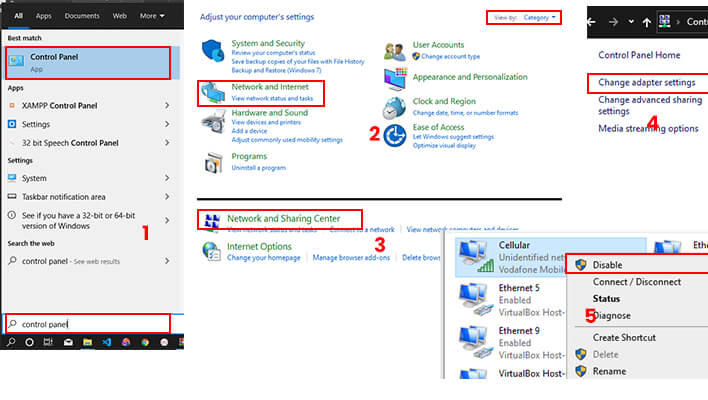
    1. Search for Control Panel and open it.
    2. On the control panel window, make sure you select view by category on the top right corner and click on Network and Internet.
    3. Click on Network and Sharing Center.
    4. On the left-hand side pane, select Change adapter settings.
    5. This will open a list all your available network adapters.
    6. Right-click on the one you are having a problem with.
    7. Select disable from the popup menu and wait for it to be disabled.
    8. After it has successfully disabled, wait for some seconds and right-click on it again and click on enable to enable the adapter.

    You can now check whether your connection has access to the internet or not. If not, then let us move to the third method.

    3. Configuring Your IP Settings

    At times your modem or router may fail to assign an IP address to your computer. In this case, we can assign this manually by following the steps below.

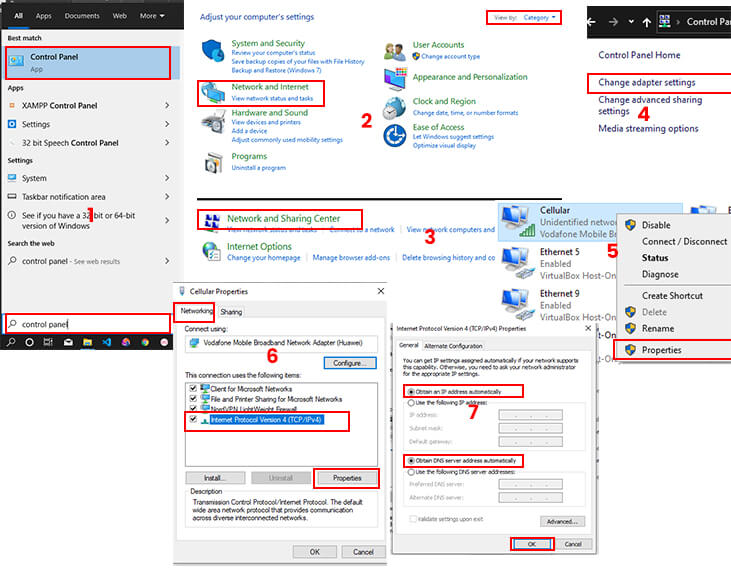
    1. Open Control Panel by search it.
    2. On the control panel window, make sure you select view by category on the top right corner and click on Network and Internet.
    3. Click on Network and Sharing Center.
    4. On the left-hand side pane, select Change adapter settings.
    5. This will open a list all your available network adapters.
    6. Right-click on your network adapter (if you are using ethernet make sure you choose the right adapter because VPNs and Virtual machines also have adapters assigned to them).
    7. Click on properties from the menu that will appear.
    8. In the Properties dialogue box, select Internet Protocol Version 4 (TCP/IPv4).
    9. Below the list of items click on Properties.
    10. Select Change an IP address automatically and Obtain DNS server address automatically.

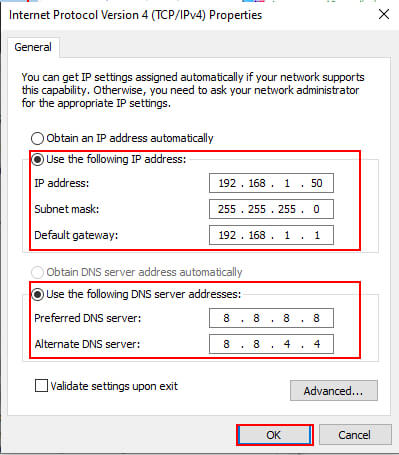
    If that didn’t work, then you can manually assign an IP address by following the picture below.

    4. Using Command Prompt

    Now, this method uses the Command Prompt to reset our network protocol.

    1. Search for Command Prompt and Run as an Administrator.
    2. Input the following commands.
    3. ipconfig /release
      iconfig /renew
    4. Also, reset IP and flush DNS using the commands below
    5. netsh winsock reset
      netsh int ip reset
      ipconfig /flushdns
    6. Exit command prompt, close all other opened programs and restart your computer.

    5. Temporarily disable Windows Defender and Antivirus Firewall

    If all the above methods didn’t work, then try to disable Windows Defender and any Antivirus software installed on your computer.

    Follow the steps below to turn off Windows Defender.

    1. Search for Windows Defender Firewall and Click on it.
    2. On the left side pane, click on Turn Windows Defender Firewall On or Off.
    3. Select Turn off Windows Defender Firewall for both Private and Public networks.
    4. Click on Ok.

    Check your connectivity. If you still can not access the internet then I have my last method below. Make sure you Turn on your Windows Defender Firewall.

    6. Update your Network Adapter

    At times this problem is also caused by outdated drivers. Follow this guide to update your driver.

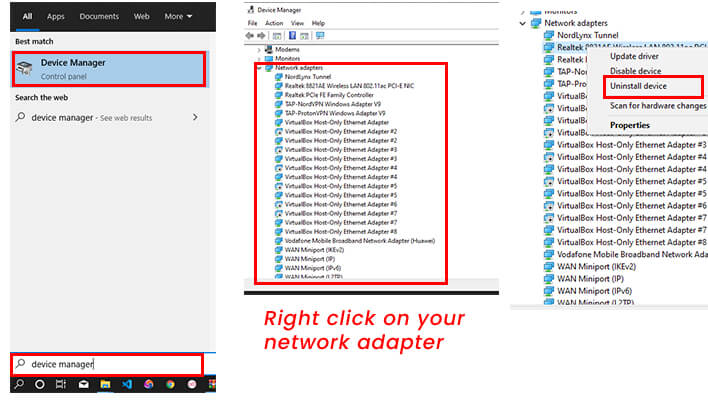
    1. Search for Device Manager and click on it to open your Device Manager.
    2. Look for Network Adapters.
    3. Right-click on your network adaptor.
    4. Select Uninstall from the context menu.
    5. Restart your computer and your windows will install the latest driver for your network adapter.

    Conclusion

    I know you are browsing on your computer smoothly after going through these methods. Let us know in the comment box the method that worked for you. Thank you for reading and make sure you visit our site regularly for valuable tech posts.